How to use HockeyDJ
Everything you need to run music on game day.
Getting started — connect Spotify
HockeyDJ controls playback on your own Spotify account, so you need Spotify Premium — the Spotify Web API only allows playback control for Premium users.
On first launch you paste a Spotify Developer Client ID. Create a free app at developer.spotify.com (if the Create app button is missing, go straight to developer.spotify.com/dashboard/create), copy its Client ID, and add the redirect URI shown on the login screen. This lets your music flow through your own Spotify app rather than a shared one.
Open Spotify on any device (phone, laptop, the rink PC) and start playing anything once, so HockeyDJ has an active device to send songs to.
Choose where the sound comes out
Open Spotify on the device you want the music to come from — your phone, a laptop, or a speaker Spotify can reach — so Spotify knows it is there.
Tap the device button at the top of the screen, next to the menu. It is red when the music isn't going to your chosen device.

Tap the device you want in the list. ▶ active shows where the music plays right now.
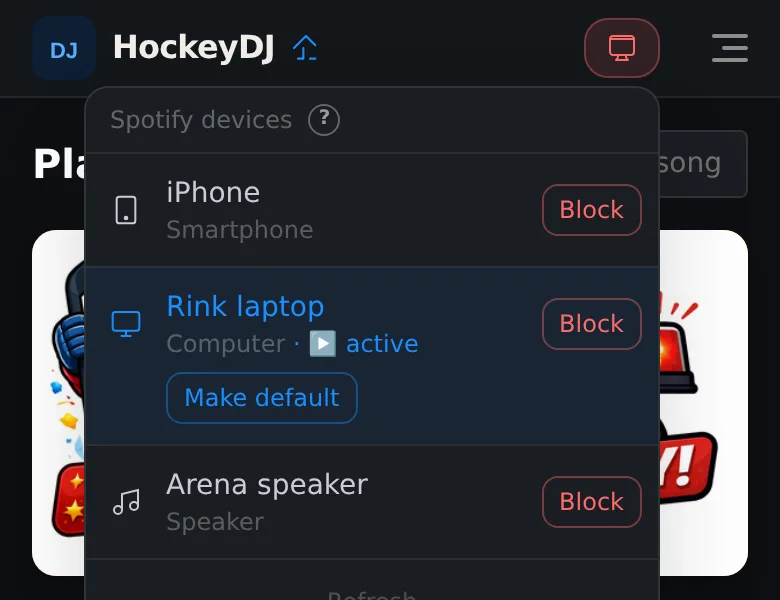
Tap Make default on it. It gets a ★ default mark and the button turns blue — the next game starts on the same device.
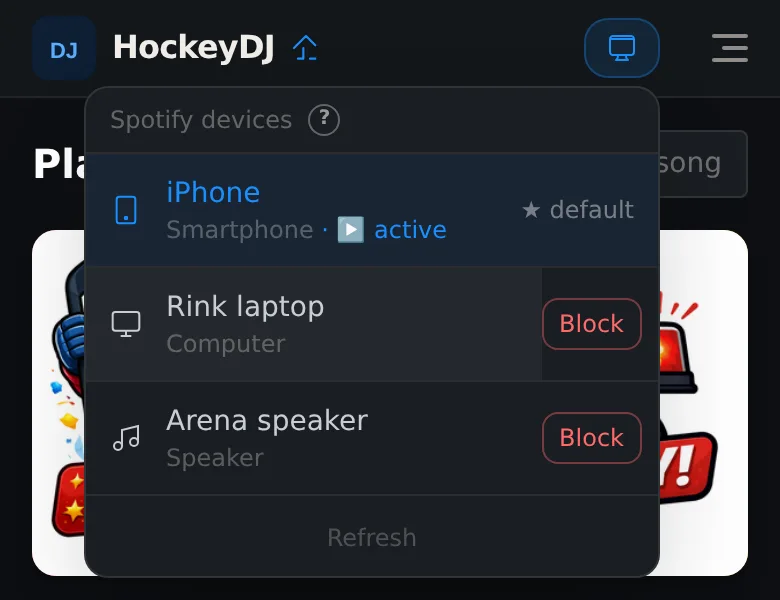
Device missing? Open Spotify on it, come back and tap Refresh. Tap Block on a device you never want to play on.
Build your library
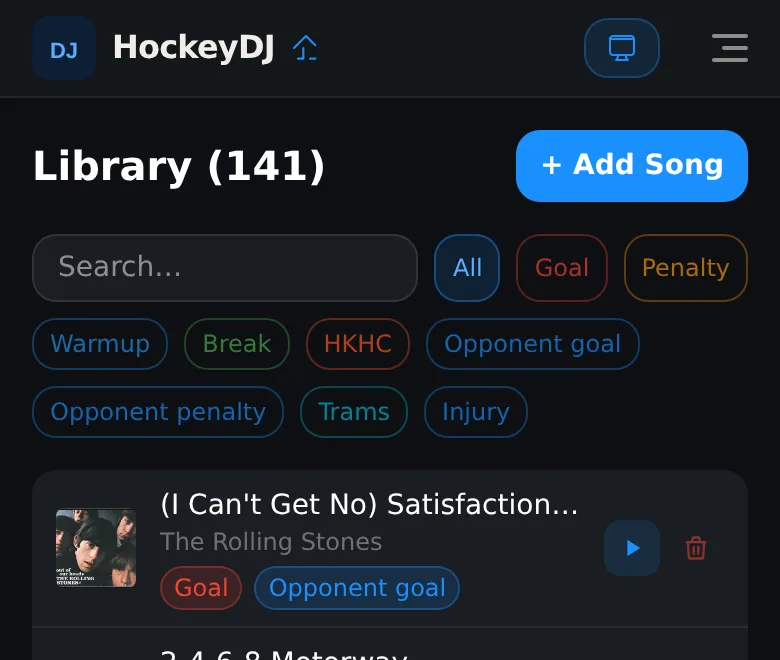
Go to Library and tap + Add Song.
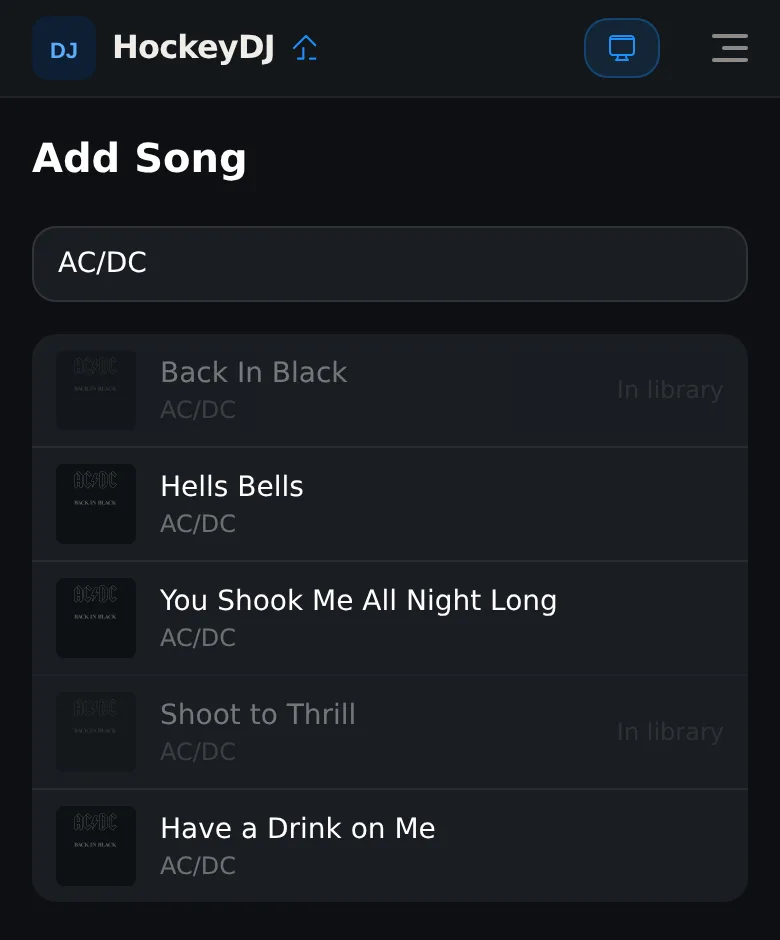
Search Spotify and tap the song you want. Songs you already have are greyed out and say In library.
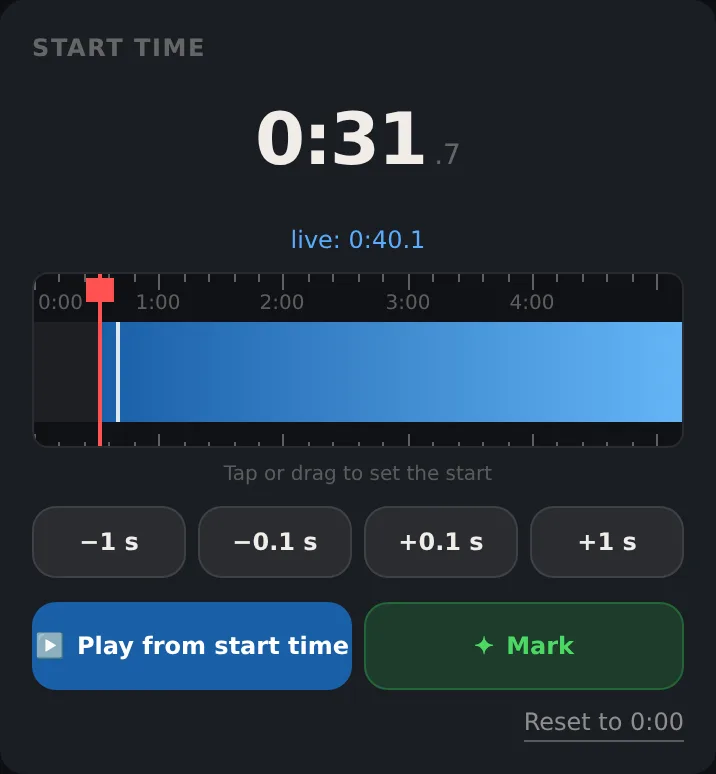
Set the start time: tap Play from start time, then tap Mark when the song reaches the part you want. You can also drag the bar or fine-tune with the ±0.1 s and ±1 s buttons. This makes a goal song hit the hook right away instead of a slow intro.
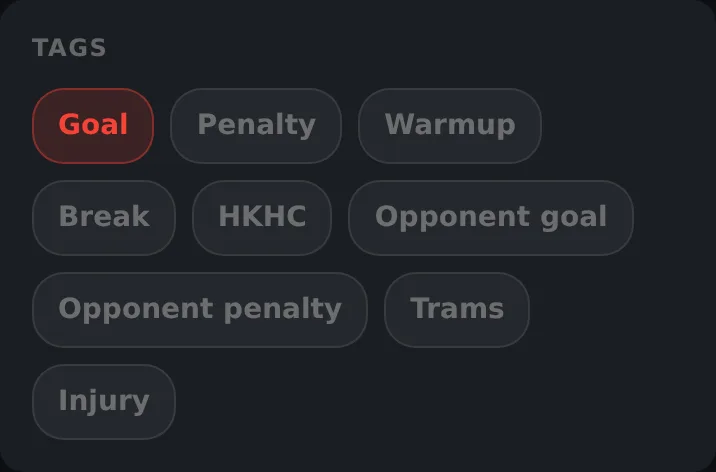
Tap the tags the song belongs to (it can have several), then tap Save to Library.
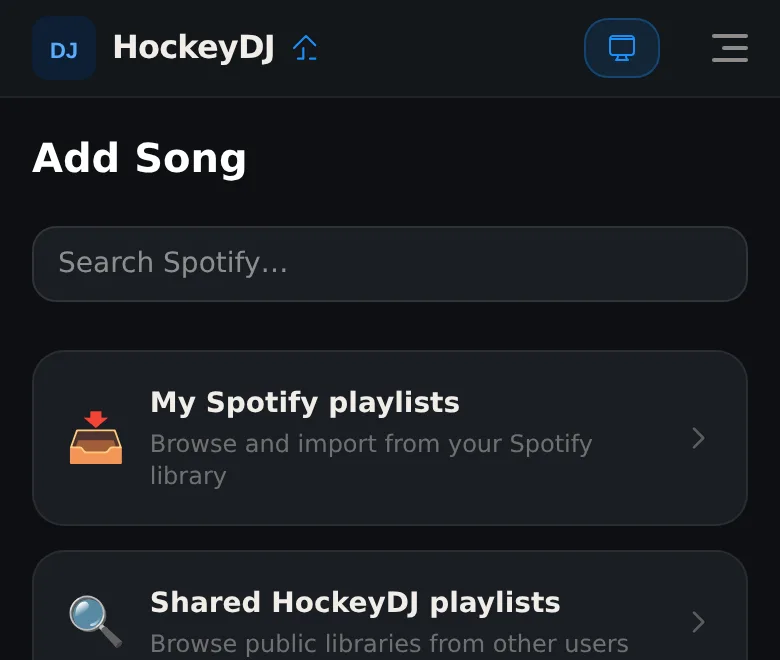
Want lots of songs at once? With the search box empty, tap My Spotify playlists to import from your own playlists, or Shared HockeyDJ playlists to borrow another DJ's library.
To change a song's start time or tags later, tap it in the Library.
Tags
Tags are the situations you play music for. Four come built in: Goal, Penalty, Warmup, Break.
On the Tags page you can rename a tag, change its color, and pick an icon for it, and you can create your own custom tags.
Each song can belong to multiple tags — assign them when adding a song or by editing it in the Library.
Play during a game
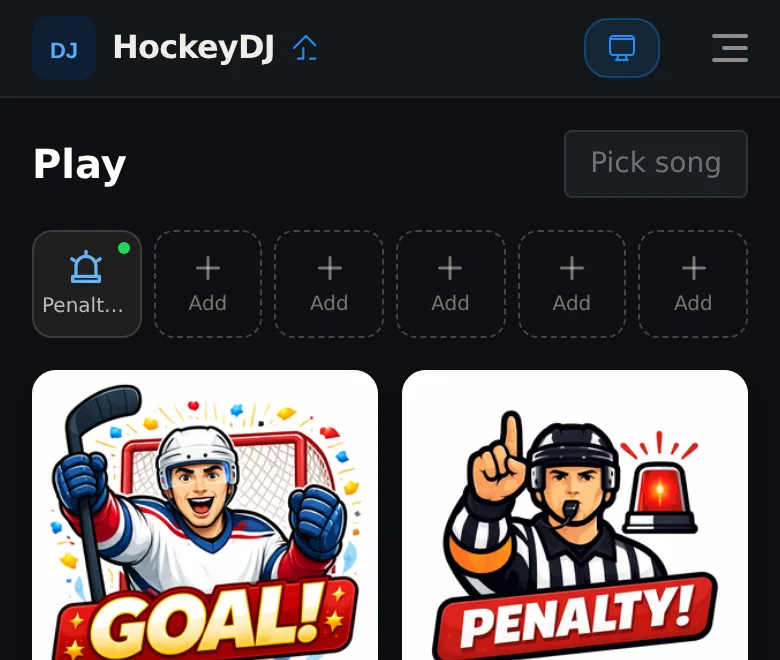
Open Play. Tap a tag and HockeyDJ plays a random song from it, from the song's start time. Every song in the tag plays once before any of them repeats, and a new game starts fresh. Tags with an icon come first.
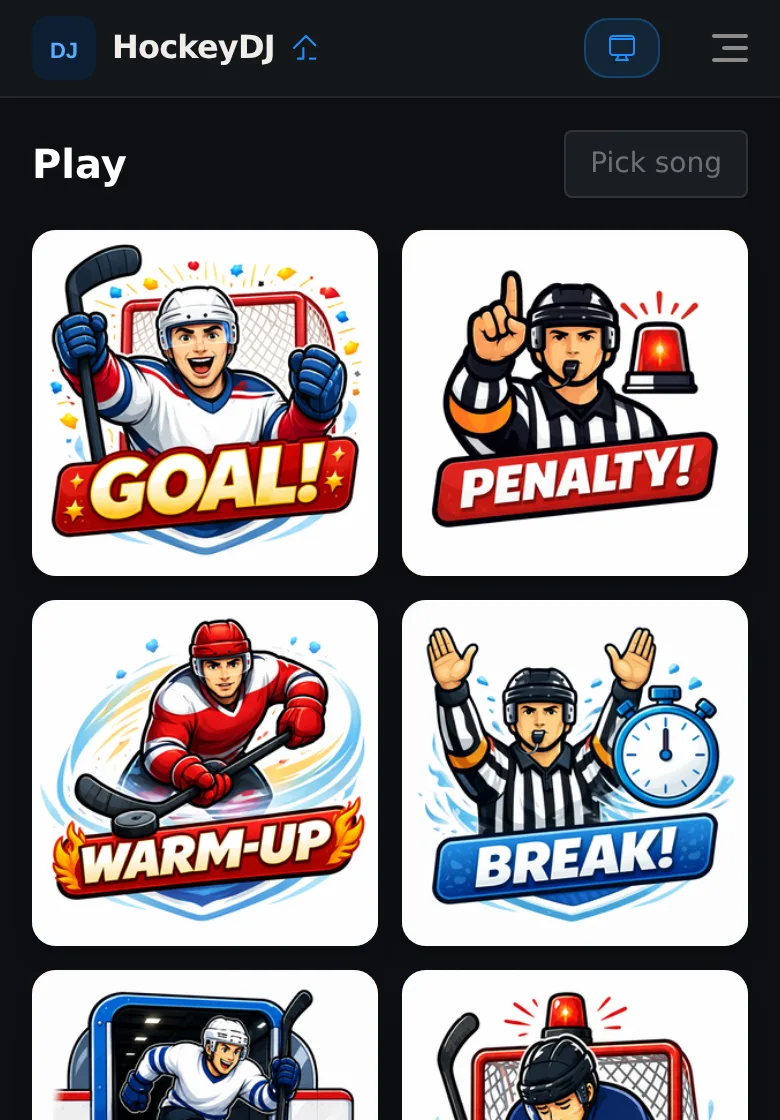
While a song plays, tap the big red button to stop it, or Next to fade over to another song from the same tag. When a song ends, the next one from the tag starts by itself.
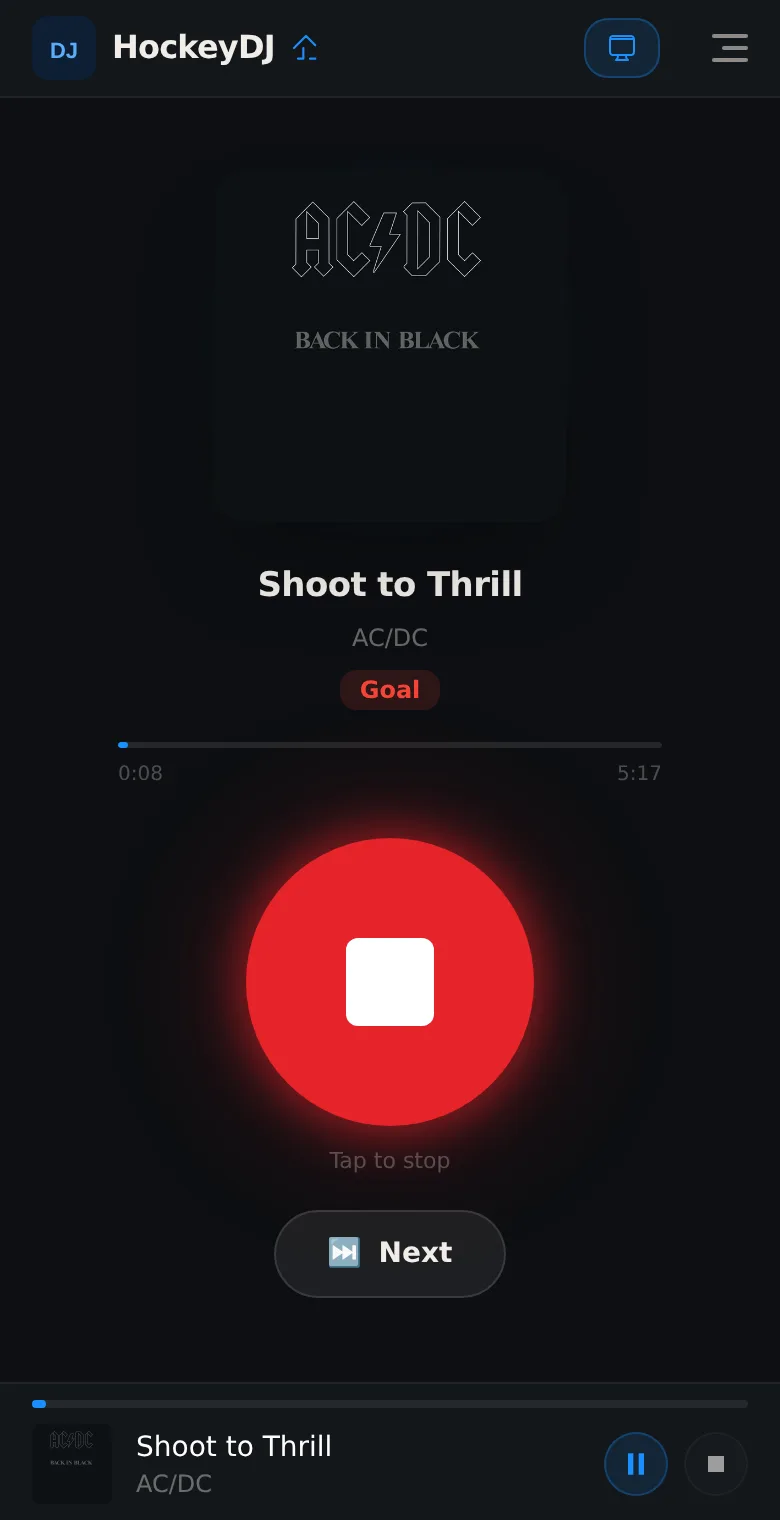
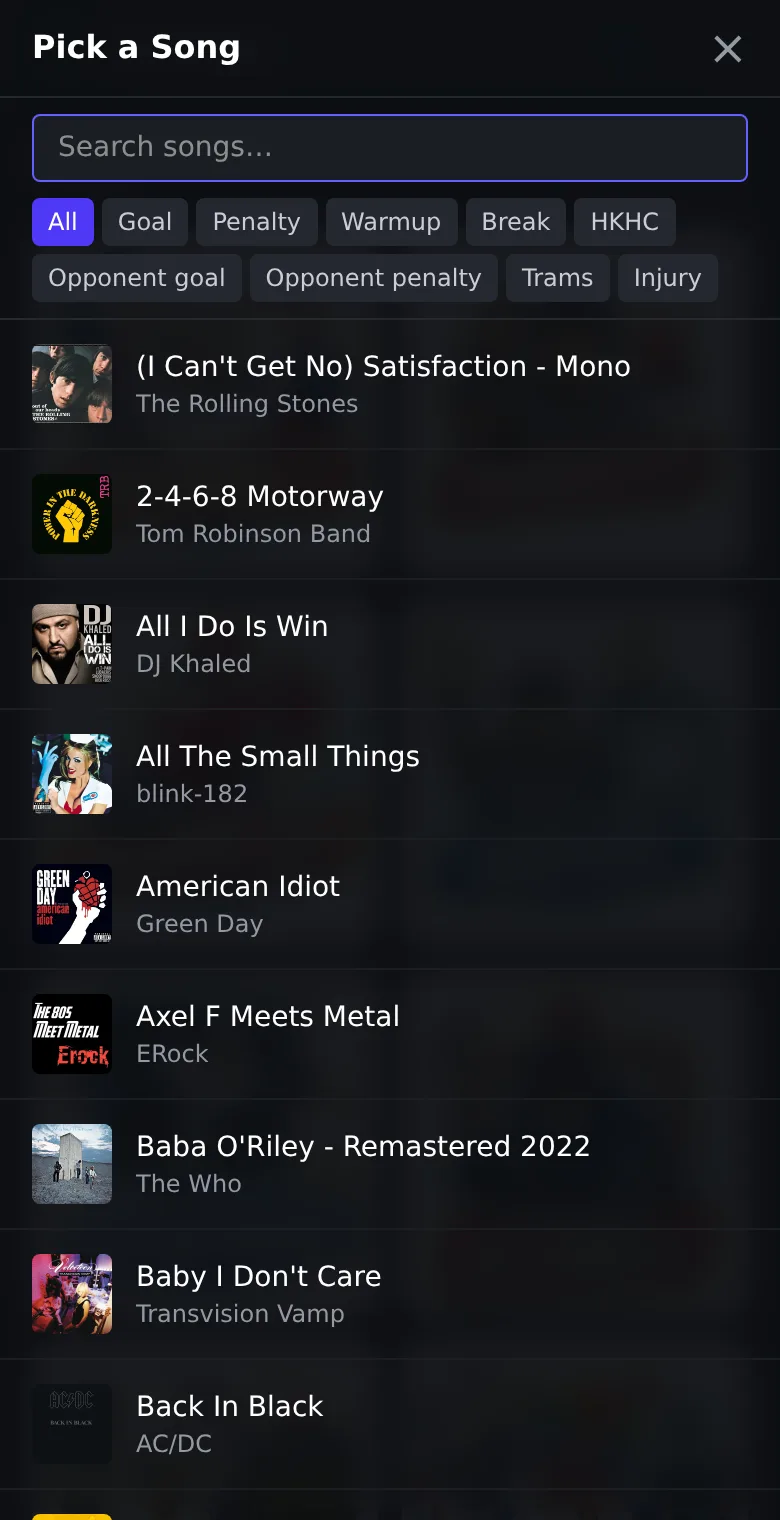
Need a specific song? Tap Pick song, search or filter by tag, and tap the song to play it.
Soundboard
Quick-sound buttons for a fog-horn, a siren or a short "let's go" clip. The soundboard is off until you turn it on.
Open Soundboard in the menu and turn on Show the soundboard on the Play page.
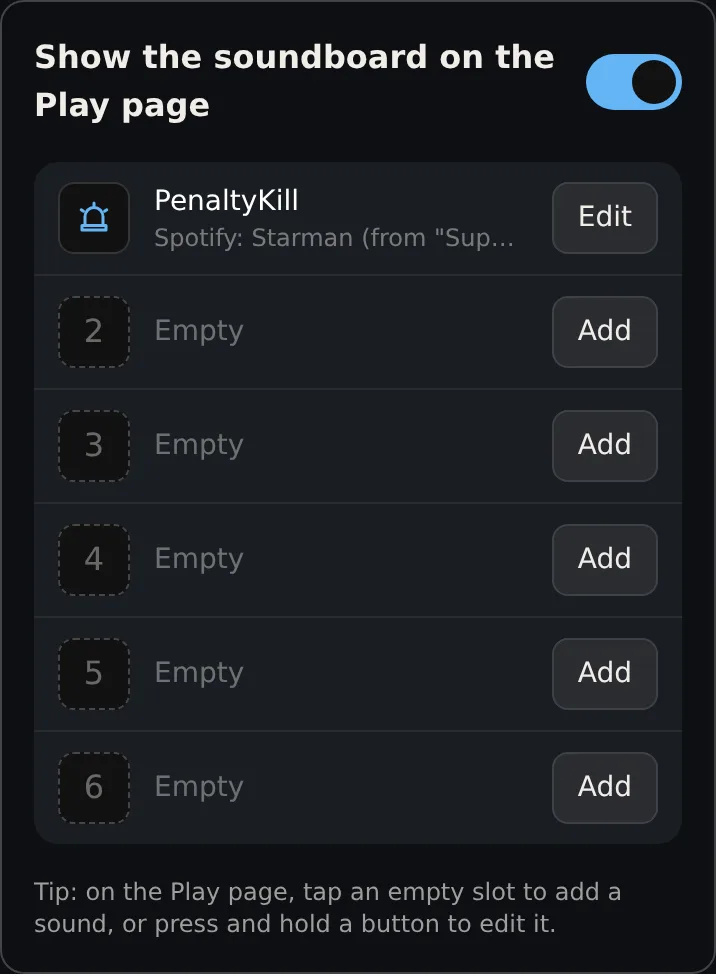
A row of 6 sound buttons now sits above your tags on Play. Tap an empty + Add slot to set one up.
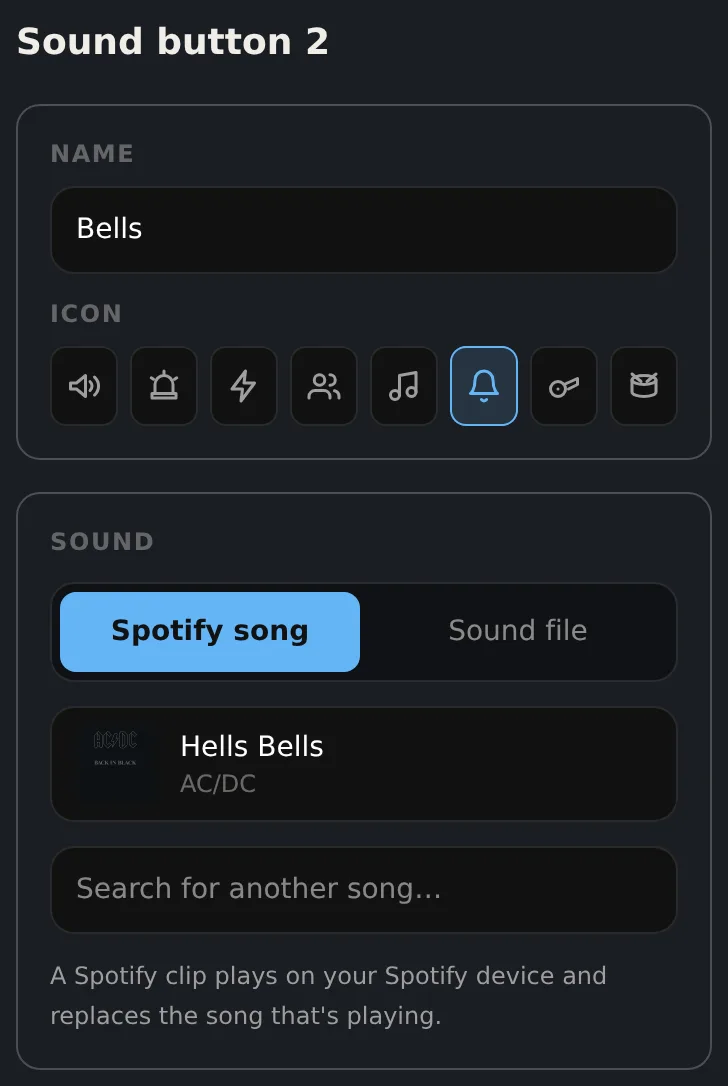
Give it a name and an icon, then pick the sound: a Spotify song, or a sound file you upload. A sound file plays from the device you're holding, on top of the music.
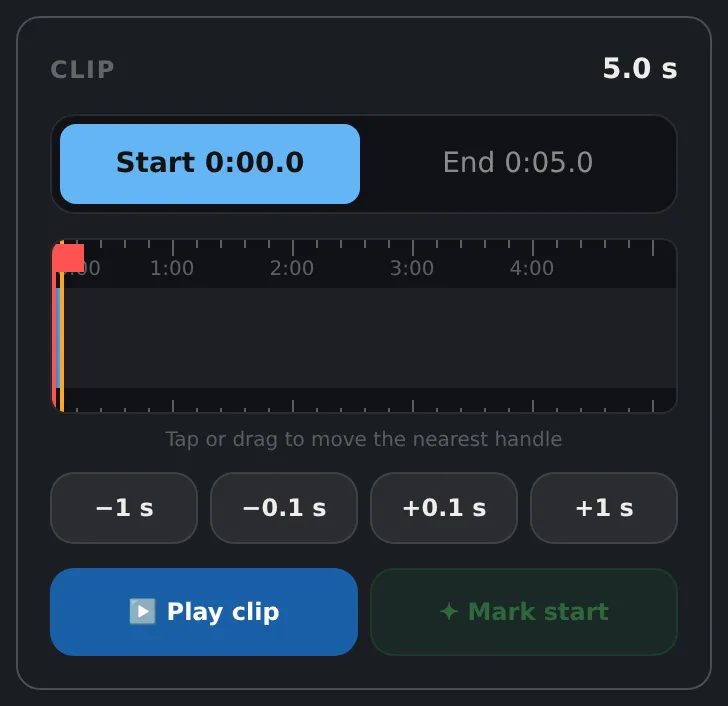
Choose which part to play: set the start and end of the clip, and tap Play clip to hear it.
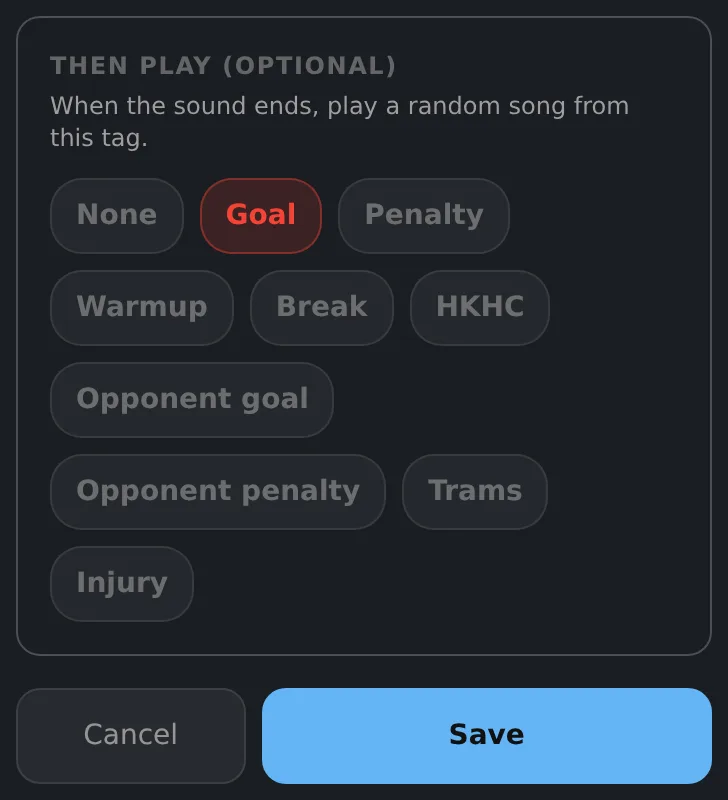
Optional: pick a tag under Then play. When the sound ends, a random song from that tag starts, so one tap gives you the horn and then a goal song. Tap Save.
During the game, tap a button to play its sound. Press and hold a button to change it.
Stats
The Stats page shows your most-played songs, filterable by time period and tag.
Switch to global stats to see what all HockeyDJ users are playing — handy for discovering what other DJs are spinning. Tap a song to find it in your library, or to add it if you don't have it yet.
Sharing libraries
You can browse and import other DJs' shared libraries, so you can borrow a ready-made set of songs and start times instead of building from scratch.
Note: sharing isn't fully finished yet. Some parts may be missing or not work as expected, and it may get better in a future update.